Send and receive text messages from Excel
Turn the rows in your spreadsheet into personalised SMS messages. Replies and delivery reports come back to the same rows. No uploads, no integration: open the add-in, click and send.
- Pay as you go
- Preview every message
- Replies land in your sheet
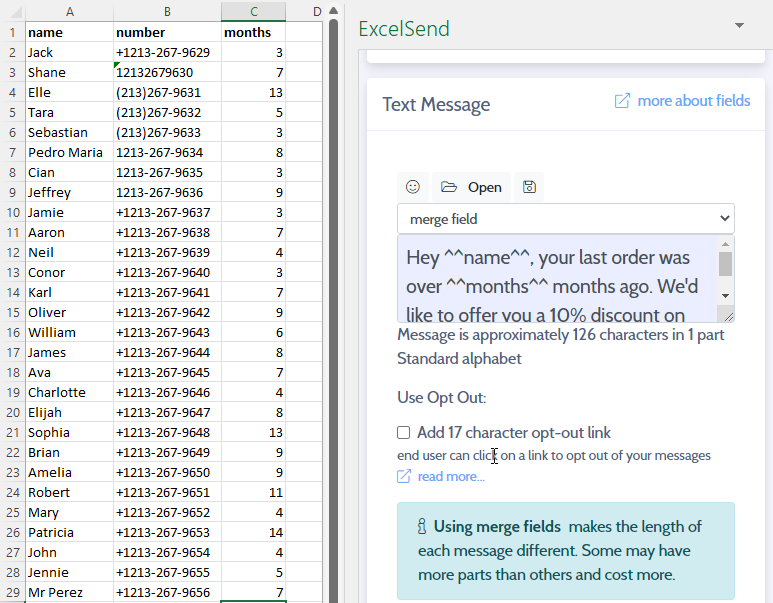
From spreadsheet to sent in four steps
ExcelSend works on the data you already have. Each row is a contact, each column is something you can put in the message.
Open your spreadsheet
Put column headers in row 1 and one contact per row. Then click Send SMS on Excel's Home tab.
Write your message
Pick the column that holds mobile numbers and write your text. Add any column to the message with a merge field such as
^^firstName^^.Preview and send
See every message, its size in parts and the total price before anything goes. Send now or schedule it for later.
Get replies in the sheet
Refresh from the Reports tab and the delivery status and any reply are written beside each contact.
Everything happens in Excel
No new contact list to keep up to date and no exports to tidy up. You work in the spreadsheet you already use.
Works inside Excel
ExcelSend is a Microsoft 365 add-in. It opens in a pane beside your sheet and reads the rows you select.
Preview every message
Check each message's destination, size and status before sending. Rows that can't be sent are flagged in the preview.
Delivery data in line
Report columns record whether each message was sent, when, its delivery status and any error, in the contact's own row.
Two-way messaging
Allow replies and your contacts' answers come back to the row of the message they replied to. Refresh again later to pick up new replies.
Opt-outs handled
Add a 17-character opt-out link to any message. Opted-out numbers go on your stop list, and later messages to them are blocked.
Branded Sender IDs
Where the country supports it, send from your organisation's name instead of a number when you don't need replies.
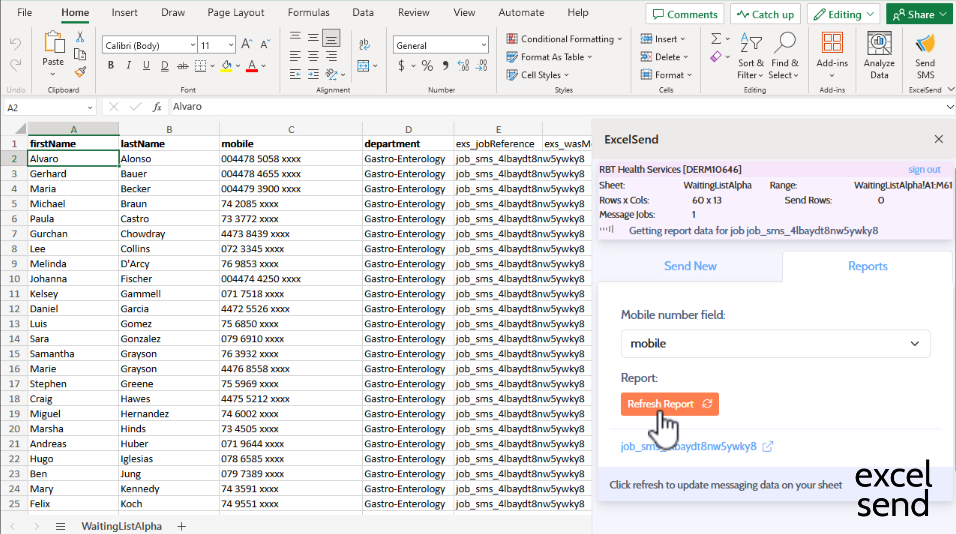
The answers come back to the right row
When you send, ExcelSend can add report columns to your sheet. One click on Refresh fills them in:
- whether each message was sent, when, and its delivery status
- the exact text that went to that contact
- whether they replied, when, and what they said
Sort or filter on the reply column like any other data. That's how clinics clear waiting lists and small businesses confirm bookings.
If it's in a spreadsheet, you can text it
Teams use ExcelSend when the list already lives in Excel and a full messaging system would be overkill.
Waiting list validation
Ask everyone on a list whether they still need their appointment or procedure. Sort the replies and shorten the list.
Appointment reminders
Remind clients of the date and time from your booking sheet and ask them to reply to confirm.
Billing notifications
Tell customers a bill is due or a balance is outstanding, with the amount merged in from your sheet.
Deliveries and logistics
Send delivery windows, collection times and changes of plan to drivers and customers.
Offers and updates
Send offers, price updates and news to customers who have agreed to hear from you, with opt-outs handled for you.
Staff, schools and clubs
Tell staff where to be, parents about changes and members about cancelled sessions.
Two short demonstrations
Pay for the messages you send
There's no subscription. You pay per message part sent and per reply received, at your country's rates. In some countries you can also rent your own reply number for a monthly fee.
See prices for your countryAvailable in selected countries
Mobile networks and regulators set different rules in each country, such as whether replies or branded Sender IDs are allowed. Check what's available where you are.
Where ExcelSend worksReady to text from your spreadsheet?
Add ExcelSend to Excel from the Microsoft store, then create your account from inside the add-in.