Install ExcelSend
Why this matters
ExcelSend runs inside Excel, so there’s nothing to install on the computer itself. It’s added from the Microsoft store, either by each user or once by an administrator for the whole organisation.
Before you start
- You need Microsoft 365 Excel.
- Some organisations block users from adding add-ins. If the store doesn’t let you add ExcelSend, ask your Microsoft 365 administrator to follow the admin centre steps below.
Add it from Excel
- Open Microsoft Excel.
- Click the Add-ins button.
- Search the store for ExcelSend.
- Click Add.
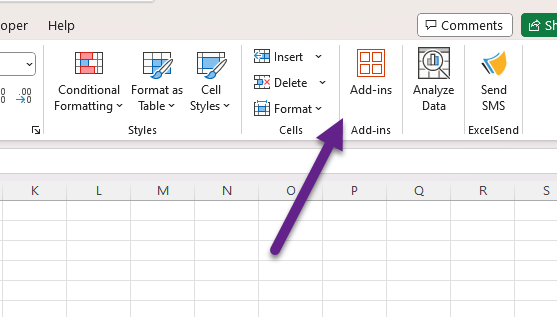
When it has loaded, Excel shows: “ExcelSend SMS add-in loaded successfully. Go to the HOME tab and click the ‘Send SMS’ button to get started.”
Add it for your organisation (administrators)
- Open the Microsoft 365 admin centre.
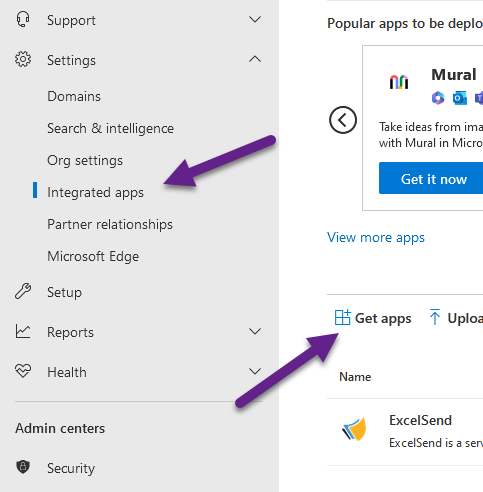
- Click Show all, then Settings.
- Click Integrated apps, then Get apps.
- Search the store for ExcelSend.
- Click Add, and choose whether it goes to selected users or everyone.
Open ExcelSend
On Excel’s Home tab, in the ExcelSend group, click Send SMS. The ExcelSend pane opens beside your sheet.
Common problems
I can’t find the Send SMS button It’s on the Home tab, in a group called ExcelSend. If it isn’t there, the add-in hasn’t been added to this copy of Excel. Repeat the steps above, or ask your administrator whether it has been deployed to you.
The store won’t let me add it Your organisation manages add-ins centrally. An administrator needs to add ExcelSend from the Microsoft 365 admin centre.