Prepare your spreadsheet
Why this matters
ExcelSend reads your sheet exactly as it is. A missing header or a stray selection is the most common reason a send goes to the wrong rows, or to none.
The layout ExcelSend expects
- Row 1 holds the column headers. Each header becomes a field you can choose as the mobile number column or use as a merge field.
- One contact per row, directly below the headers.
- One column of mobile numbers.
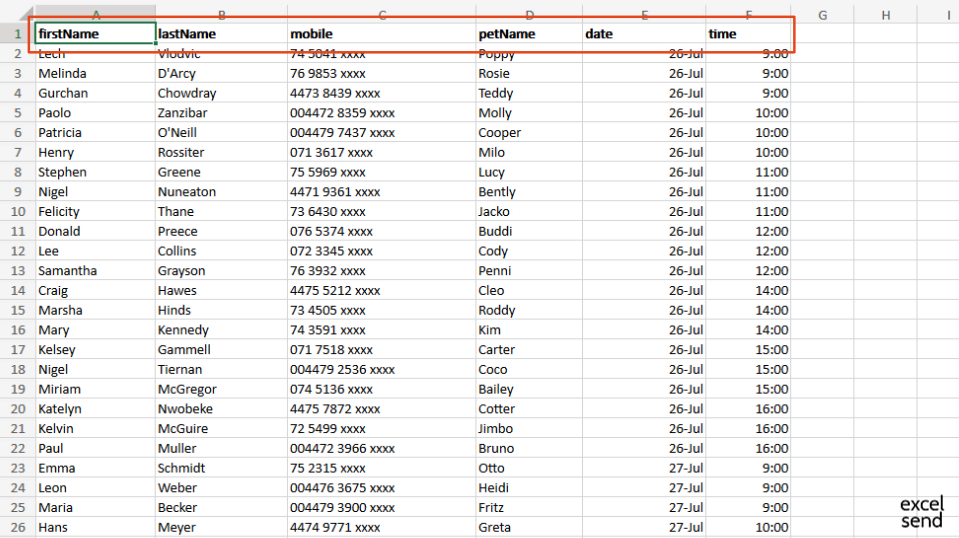
Headers that are short and without spaces, such as firstName or apptDate, are easiest to use in messages.
Which cells ExcelSend reads
- If one cell is selected, ExcelSend reads the whole used range of the sheet.
- If more than one cell is selected, it reads only the selection. The first row of your selection must then be the headers.
The top of the pane shows the Sheet: and Range: being read, the Rows x Cols:, and Send Rows:, the number of rows that will be sent. Check these before you compose.
ExcelSend re-reads the sheet when you change the selection. On older versions of Excel the pane says “Older Excel Detected: Click Refresh when you change sheet or selection”. Click Refresh whenever you change sheet or selection.
Choose the mobile number column
On the Send New tab, pick the column from Mobile number field:. ExcelSend chooses it for you when a header is phone, mobile, cell, cellphone or mobilephone, in any capitals.
ExcelSend sends each number as it appears in the cell and the number is checked when you preview: the preview flags any it can’t send to. International format, with the country code, avoids any doubt about which country a number belongs to.
Rows that won’t be sent again
When you send with report fields, each row gets a job reference in the exs_jobReference column. Rows that already have a job reference are skipped on later sends, so a sheet can’t accidentally text the same people twice.
To send to those rows again, use a new copy of the sheet, or clear their exs_jobReference cells.
Columns whose headers start with exs_ are ExcelSend’s own and aren’t offered as fields.
Common problems
“No data detected on worksheet” or “No column fields detected on worksheet” The sheet is empty or row 1 has no headers. Add headers in row 1.
“No data detected in your selection” The selected cells are empty. Click a single cell to use the whole sheet, or select the range including its header row.
“No Send Rows” Every row in the range already has a job reference. See above.
The wrong rows were counted You had several cells selected, so ExcelSend used only the selection. Click a single cell and check Range: again.
Replies are matched to the wrong row Reports are matched by mobile number and job reference. If the same number appears twice in one send, both rows can pick up the same reply. Remove duplicates before sending.