Get ExcelSend
Add ExcelSend to Excel
ExcelSend is an add-in for Microsoft 365 Excel. Add it yourself from the store, or ask your Microsoft 365 administrator to add it for your organisation.
From Excel
If your organisation lets you add add-ins yourself.
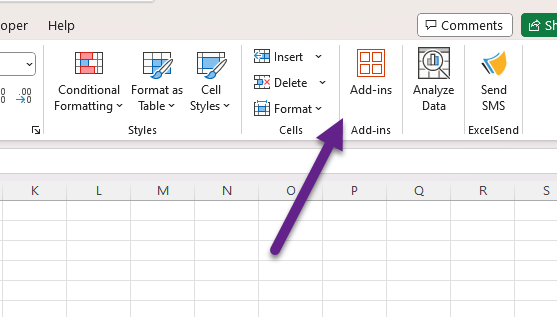
- Open Microsoft Excel.
- Click the Add-ins button.
- Search the store for ExcelSend.
- Click Add.
From the Microsoft 365 admin centre
For administrators adding ExcelSend for chosen users or everyone.
- Open the Microsoft 365 admin centre.
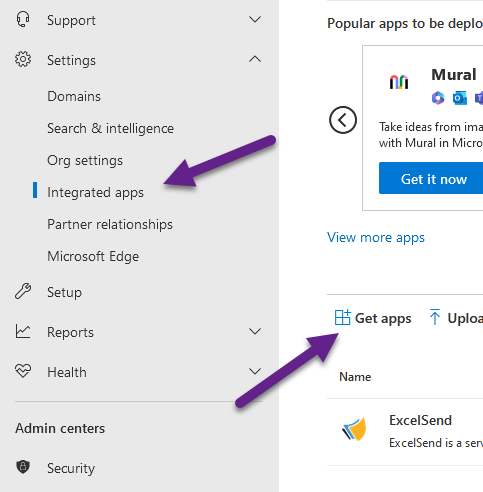
- Click Show all, then Settings.
- Click Integrated apps, then Get apps.
- Search the store for ExcelSend.
- Click Add and choose who gets it.
Next
Open it and sign in
- On Excel's Home tab, click Send SMS. The ExcelSend pane opens beside your sheet.
- No account yet? Click Register here in the pane, or create an account now.
- Click Sign In and enter your email address and password, or an access key.
Then follow Send your first message in the docs.
Before you start
Check your country
Whether your contacts can reply, and whether you can send from a brand name, depends on the country your account is in.
Where ExcelSend works